Enhancing Your Action Items: Due Dates, Goals, and URLs
updated 1 minute ago
In this article:
- Adding and Removing Due Dates
- Linking Goals to Action Items
- Adding and Removing URLs
- Key Points to Remember
Learn how to add more functionality to your action items by incorporating due dates, linking goals, and adding URLs.
Adding and Removing Due Dates
To add a due date:
Click the calendar icon next to the action item.
Select the desired date from the calendar that appears.

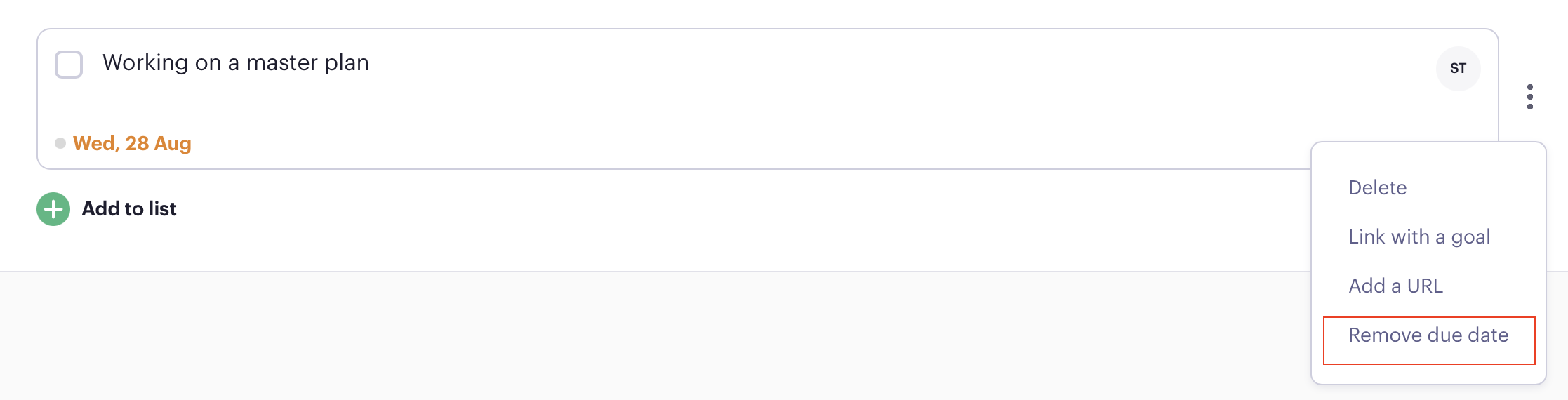
To remove a due date:
Click the three-dot menu next to the action item.
Select "Remove due date" from the dropdown.
Linking Goals to Action Items
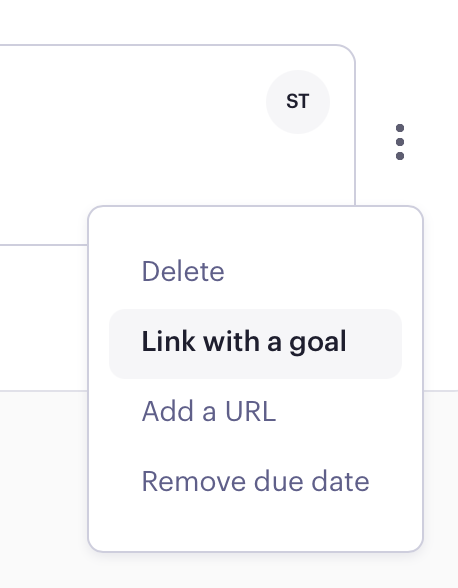
To link a goal:
Click the three-dot menu next to the action item.
Select "Link with a goal".
Choose the goal you want to link from the list provided.
The linked goal will appear next to the action item.

To remove a linked goal:
Click on the linked goal next to the action item.
Select "Remove link" from the options that appear.
Adding and Removing URLs
To add a URL:
Click the three-dot menu next to the action item.
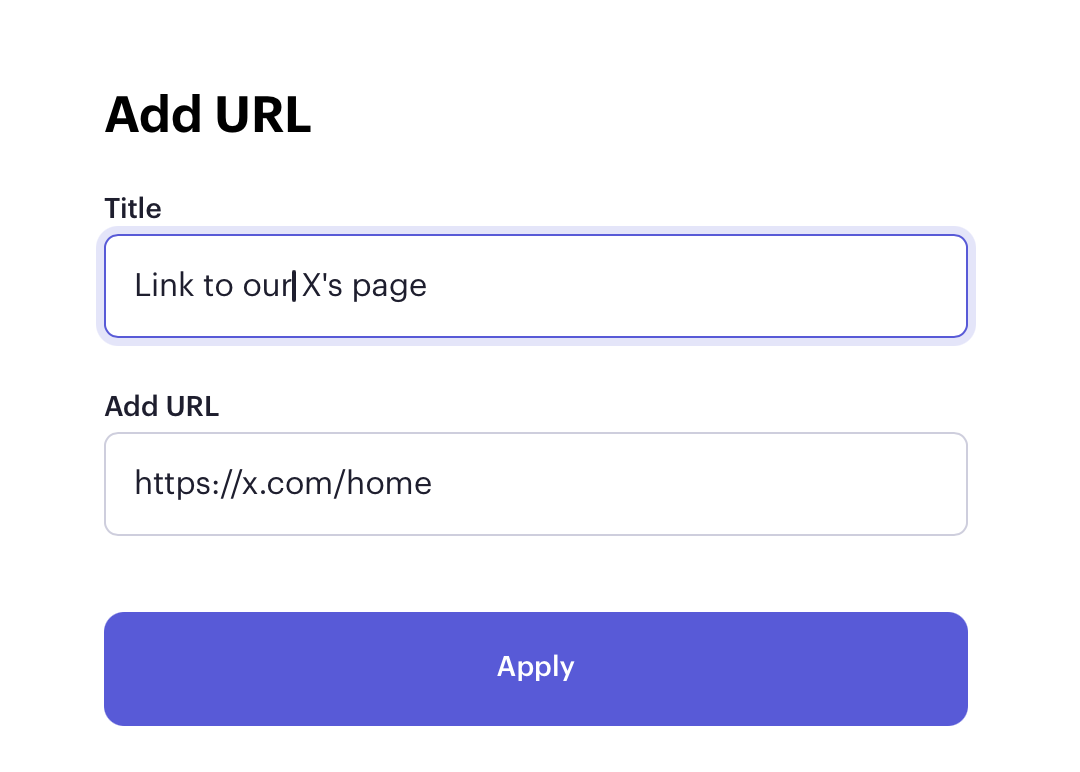
Select "Add URL".
Enter the title of the URL in the designated field.
Enter the full URL in the URL field.
Click "Apply" to save the URL to the action item.
To remove a URL:
Click the three-dot menu next to the action item.
Select "Remove link" from the dropdown.
Key Points to Remember
Due dates can be easily added using the calendar icon or removed using the three-dot menu.
Linking goals to action items helps in aligning tasks with broader objectives.
Adding URLs can provide quick access to relevant external resources.
All these enhancements can be managed through the three-dot menu next to each action item.
Was this article helpful?
