Adding and Assigning Action Items
updated 15 minutes ago
In this article:
This guide will walk you through adding and assigning new action items to team members.
Adding Action Items
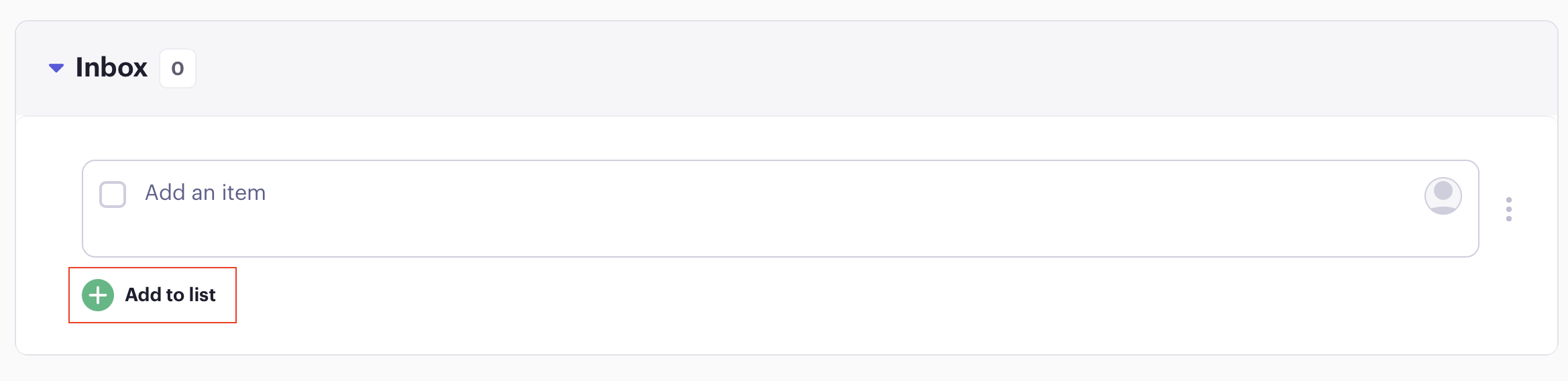
1. Locate the empty field on your Action Items page.
2. Type your action item into this field.
3. To add more items:
- Click the "Add to List" button.
- You can repeat this process to add as many action items as needed.
Assigning Action Items
By default, new action items are assigned to you. However, you can easily assign them to other team members:
1. Look to the right of the action item field.
2. You'll see your name, which is automatically selected.
3. To assign to another person:
- Click on your name and unassigned by clicking "X"

- Click again to show a list of team members:
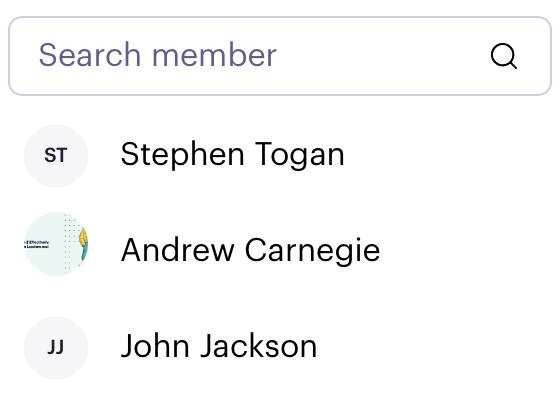
- Use the search function to find the desired team member.
- Select the team member to assign the action item.
Important Note
When you assign an action item to another team member, it will be removed from your list.
By following these steps, you can create and assign action items efficiently within your team. If you need further assistance, please don't hesitate to contact our support team.
Was this article helpful?
