How to Request Feedback in Beam
updated 3 months ago
In this article:
Requesting feedback is an essential part of personal and professional development. This guide provides a step-by-step process for requesting feedback from your colleagues or managers in Beam, ensuring you receive valuable insights that can help you grow and improve.
Step-by-Step Guide to Requesting Feedback
Step 1: Initiating the Feedback Request
Access the Feedback page: Click the "Create" button to begin
Select 'Request Feedback': From the options available, choose "Request Feedback" to proceed.
Step 2: Selecting the Feedback Recipient
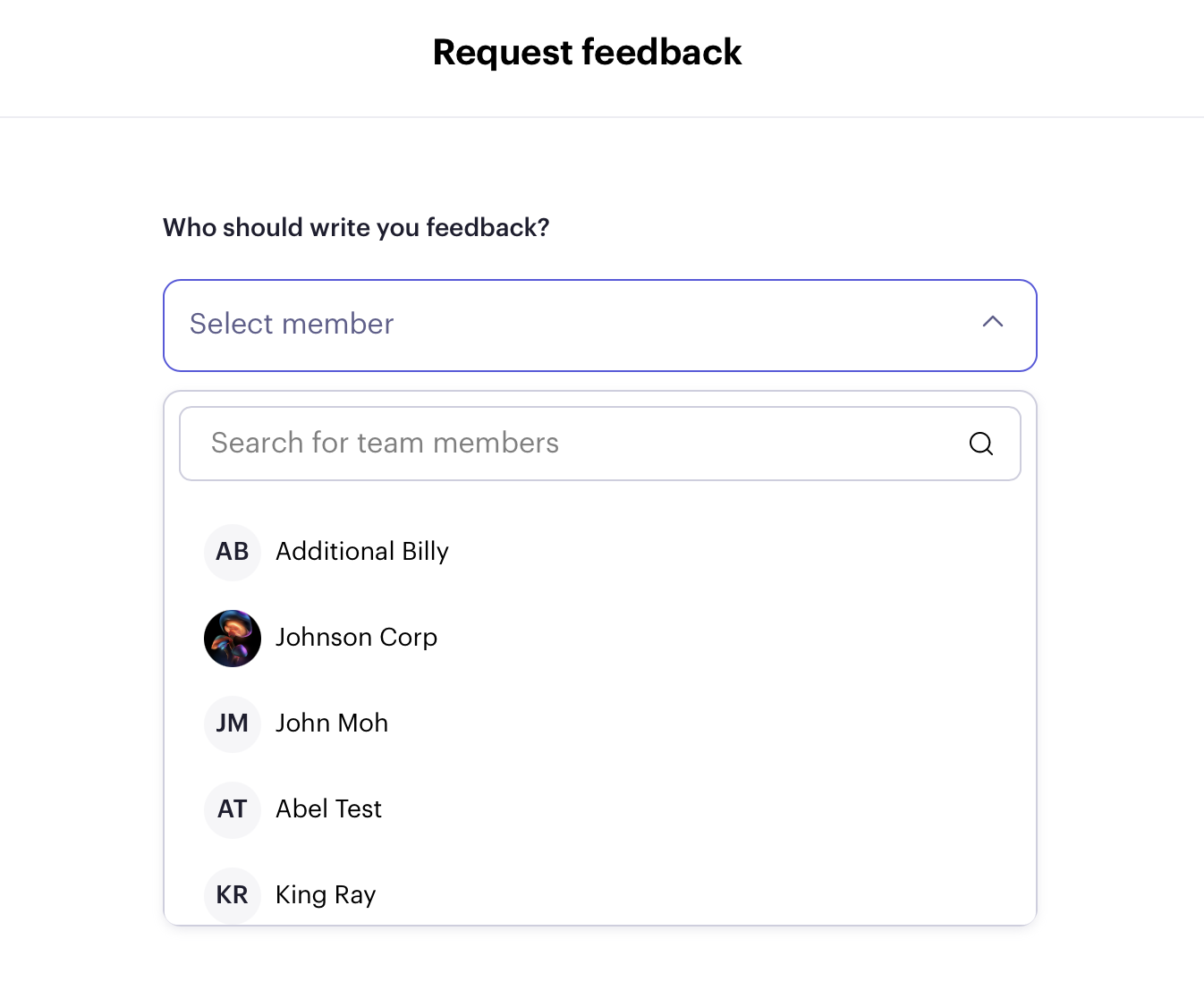
Choose a Member: Select the member from whom you want to request feedback using the dropdown menu. This ensures the request is directed to the appropriate individual.
Step 3: Specifying the Feedback Context
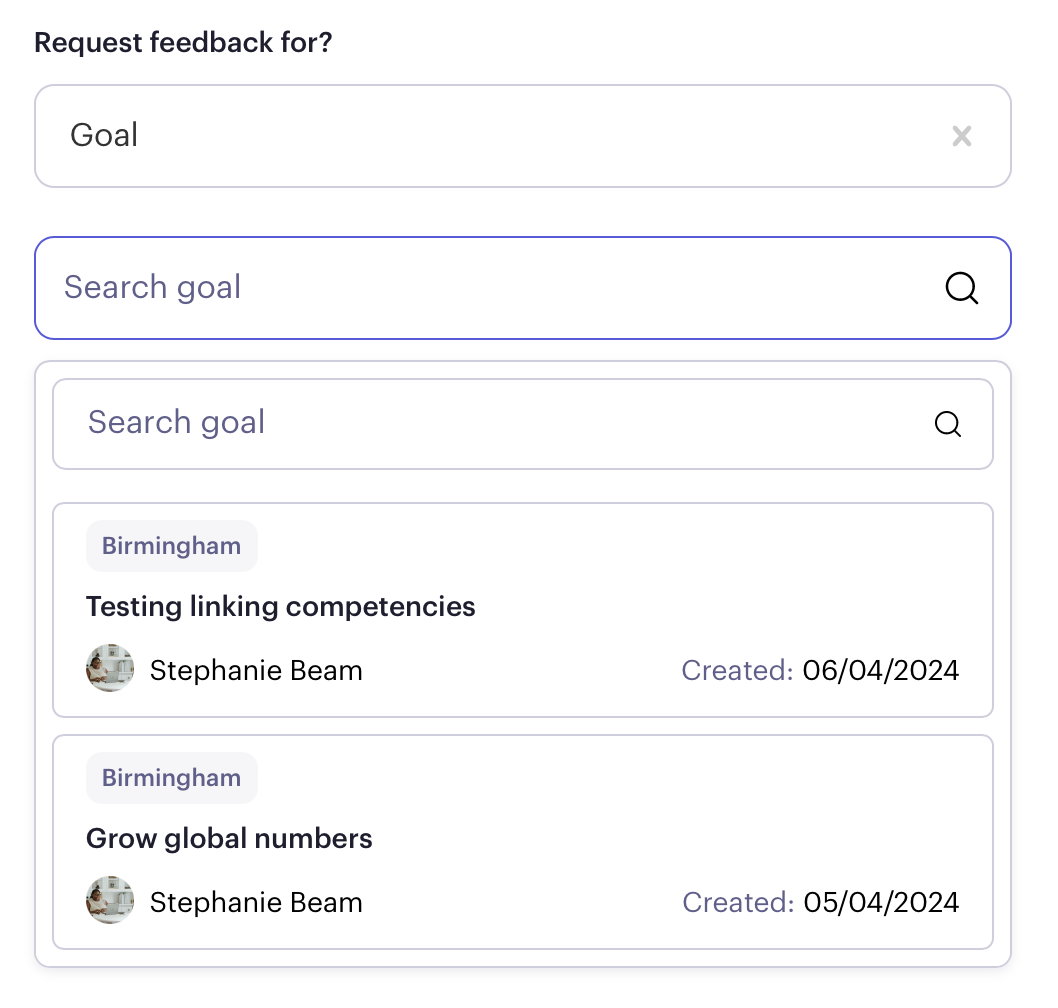
Determine the Context: Decide what the feedback should be about. You have two options:
Goal: If it pertains to a specific goal, select the goal from the list provided.
Custom Topic: If it relates to something more general or specific that is not listed as a goal, you can write out the custom topic.
Step 4: Sending the Feedback Request
Submit Your Request: After completing the necessary information, click "Send Request." The selected user will then receive a notification and your feedback request.
Was this article helpful?
