Navigating the Team Update Section for Managers
updated 4 weeks ago
In this article:
Welcome to the guide on how to use the Team Update section on Beam. This section is designed for managers to review and manage updates their team members submit.
Overview of the Team Update Section
Managers can view all updates their team members submit in the Team Update section. This centralised location allows for a streamlined review process and ensures managers stay updated on their team's progress and morale.
Key Features in the Team Update Section
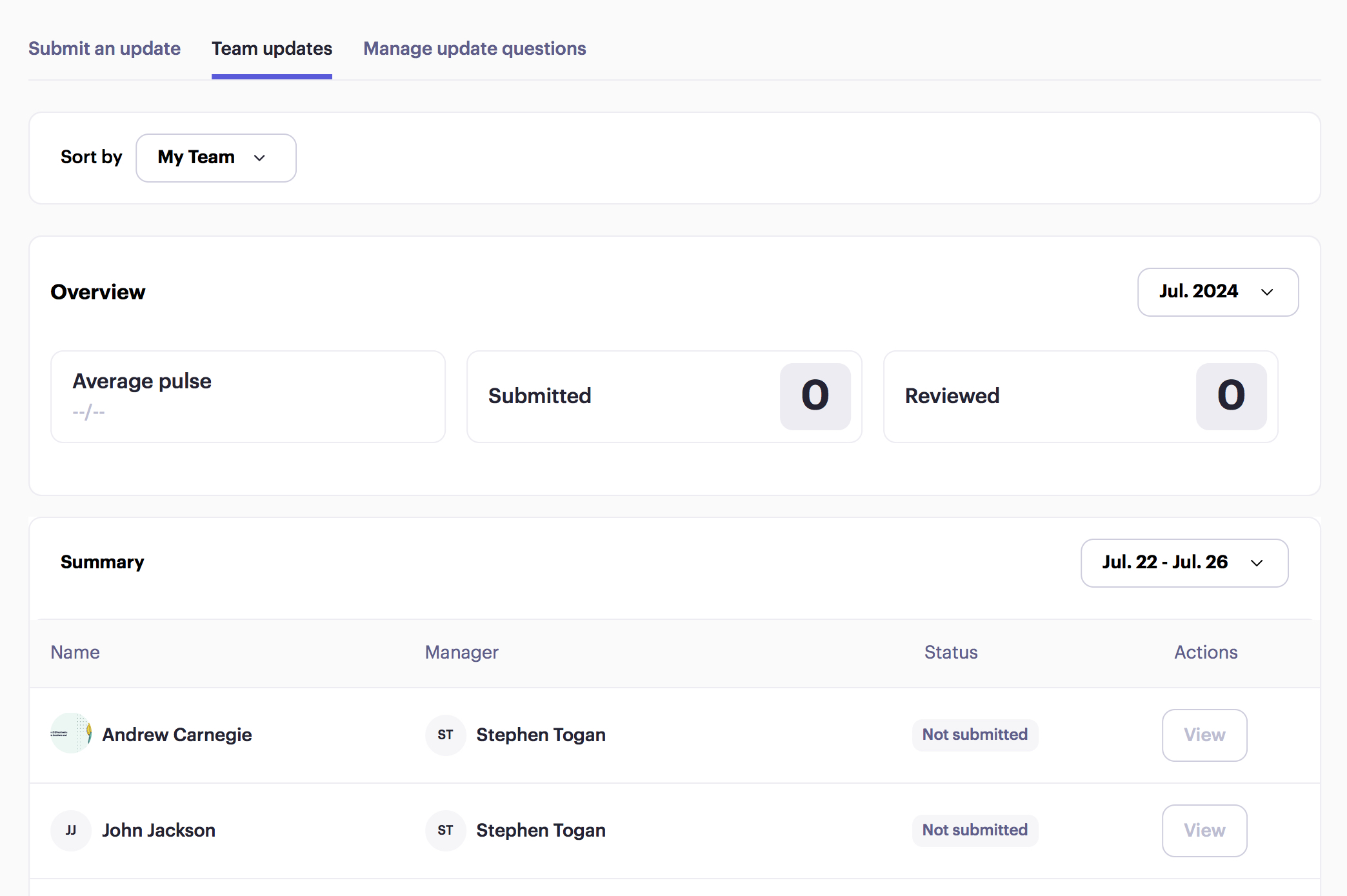
1. "Sort by" filter: If you are a manager with other managers reporting to you, you can access their teams' updates by using the dropdown menu to select different teams within the organization.
2. Summary Section: Here, managers can see the team's average pulse, the number of updates submitted, and the number reviewed.
Date Options: Managers can view updates from different weeks by selecting the desired month or week from the calendar dropdown.
Reviewing Submitted Updates and Providing Feedback
Managers can click the "Review" button to start when ready to review updates. During the review process, managers can:
Assess the Average Mood: Understand the general sentiment of the team.
Monitor Progress: Check the progress on objectives and action items.
Provide Feedback: Write and share feedback directly with team members.
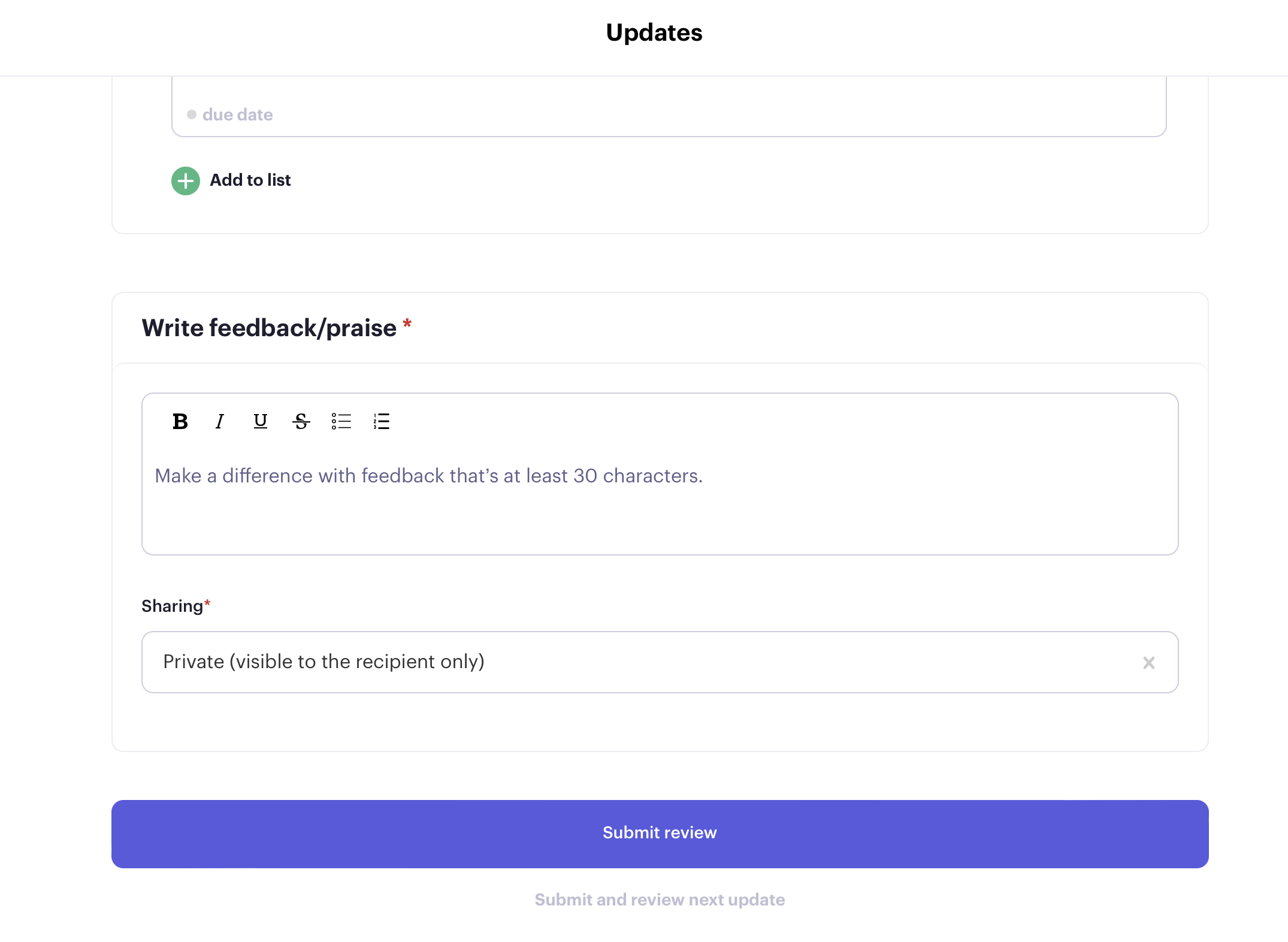
Completing the Review Process
Managers can finalise the process once the review is complete by clicking "Submit Review." This action confirms that the updates have been reviewed and feedback has been provided where necessary.
Was this article helpful?
