How to Submit Weekly, Biweekly, or Monthly Updates
updated 3 months ago
In this article:
For Admins: Setting Up Update Frequency
The frequency of updates (weekly, biweekly, or monthly) is determined by the workspace settings configured by an admin. Admins can adjust these settings to align with the team's needs and objectives.
What to Include in Your Update
An effective update is structured and comprehensive. Here’s what you can include:
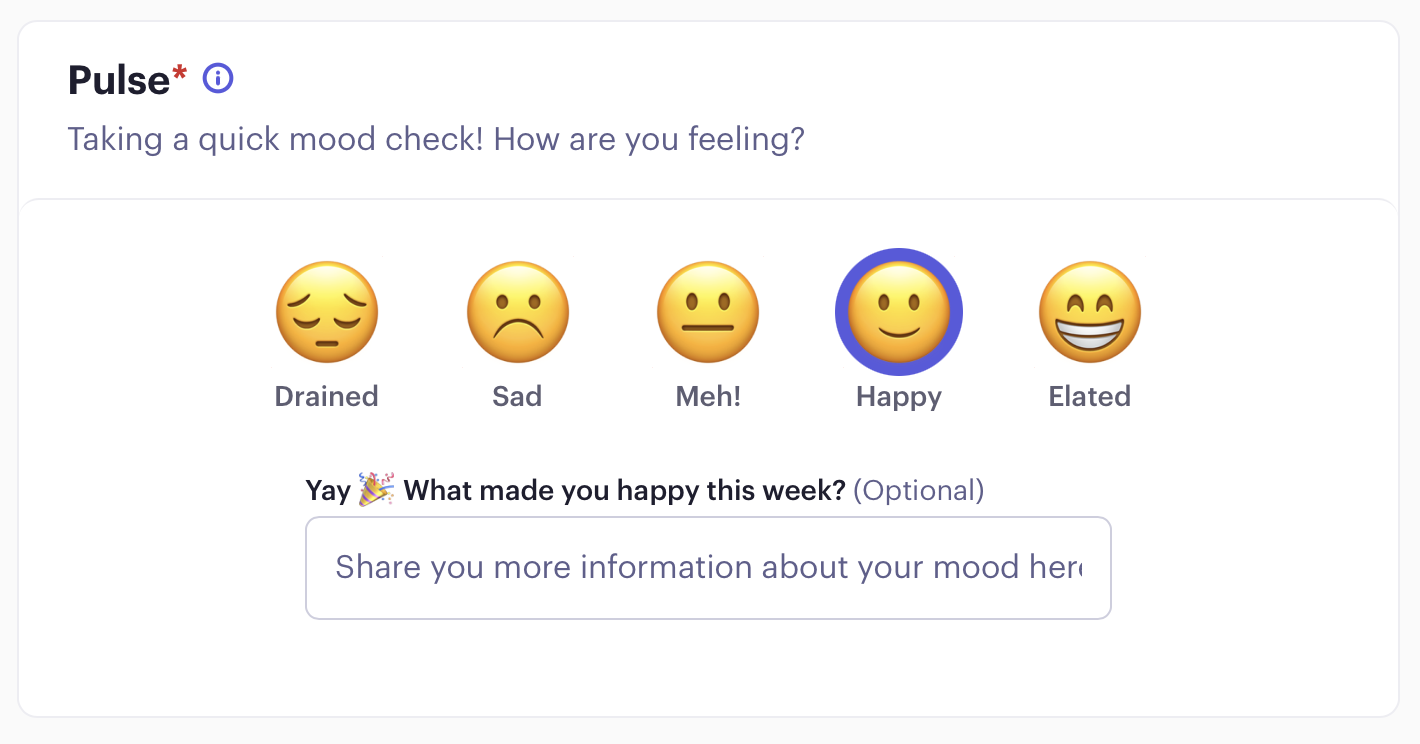
Pulse Indicator
If enabled in your workspace, you can select a mood indicator as part of your update. This feature allows you to communicate your general sentiment or morale, providing additional context to your update. You can also include more context in your updates.
Updating Goals and Key Results
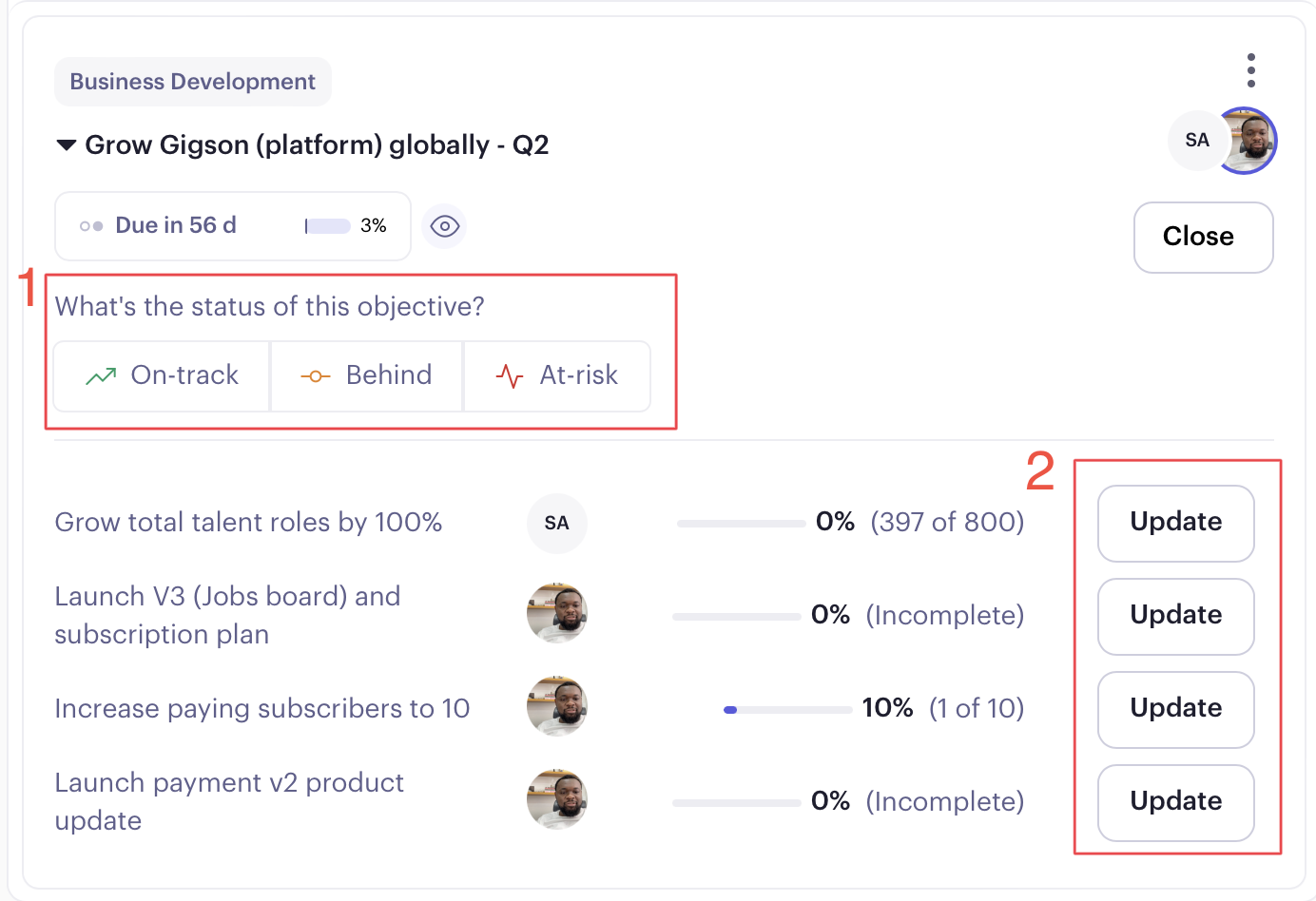
Within your update, you can adjust the status of your objectives and summarize the progress of key results Or KPIs. What to update:
Update Objective status
Update Key result
Action Items and Questions
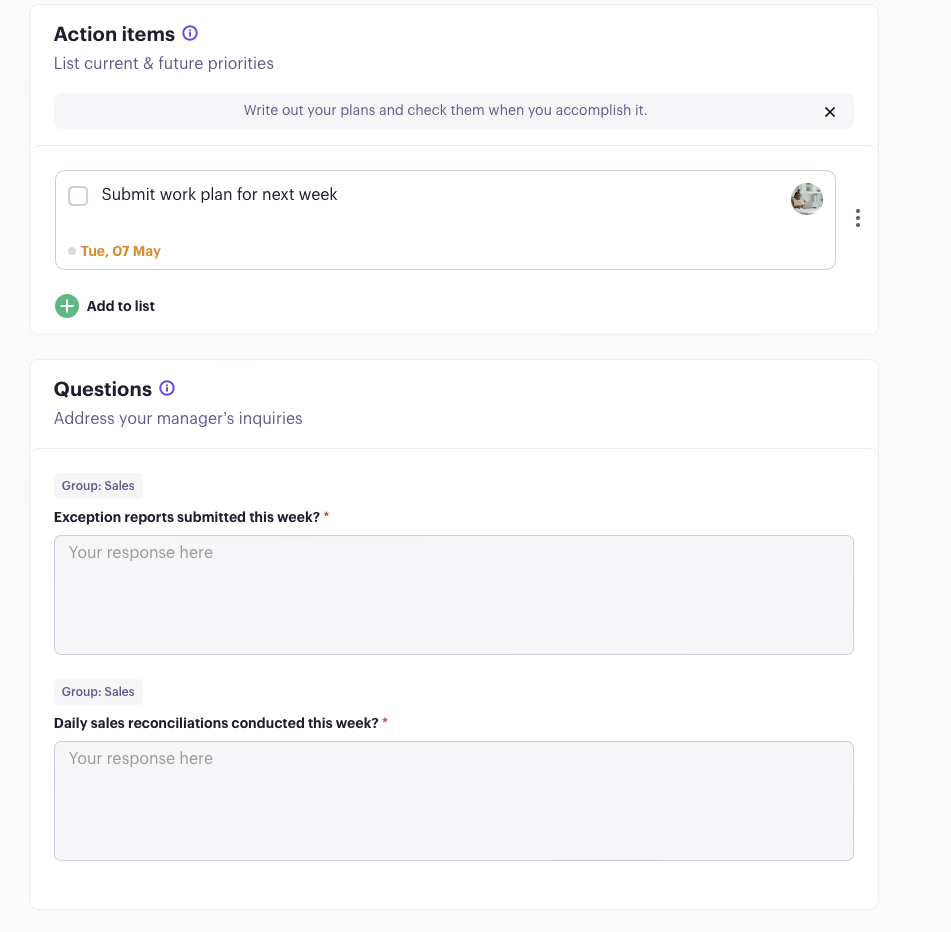
Adding new action items provides a forward-looking view of your tasks. Additionally, if the update template includes any questions, make sure to answer them thoroughly. This could involve giving feedback, offering suggestions, or sharing insights relevant to your role and projects.
Submitting Your Update
Once you've completed all sections of your update, you can submit it for review. You'll find a "Submit" button to finalise your update.
Was this article helpful?
